The capacity warning
Make My Day adds up the tasks you put between two appointments and tells you when they need more time than the gap has. There is nothing to switch on and nothing to configure.
Plans fail on arithmetic more often than on willpower. Four tasks that each feel like “twenty minutes” do not fit into the hour before the client call, and you usually discover that at half past three.
Make My Day does the sum while you are still planning. Where a run of tasks sits between two appointments, it compares how long those tasks need with how much time is actually there — and says something only when they don’t fit.
The rule, in one line
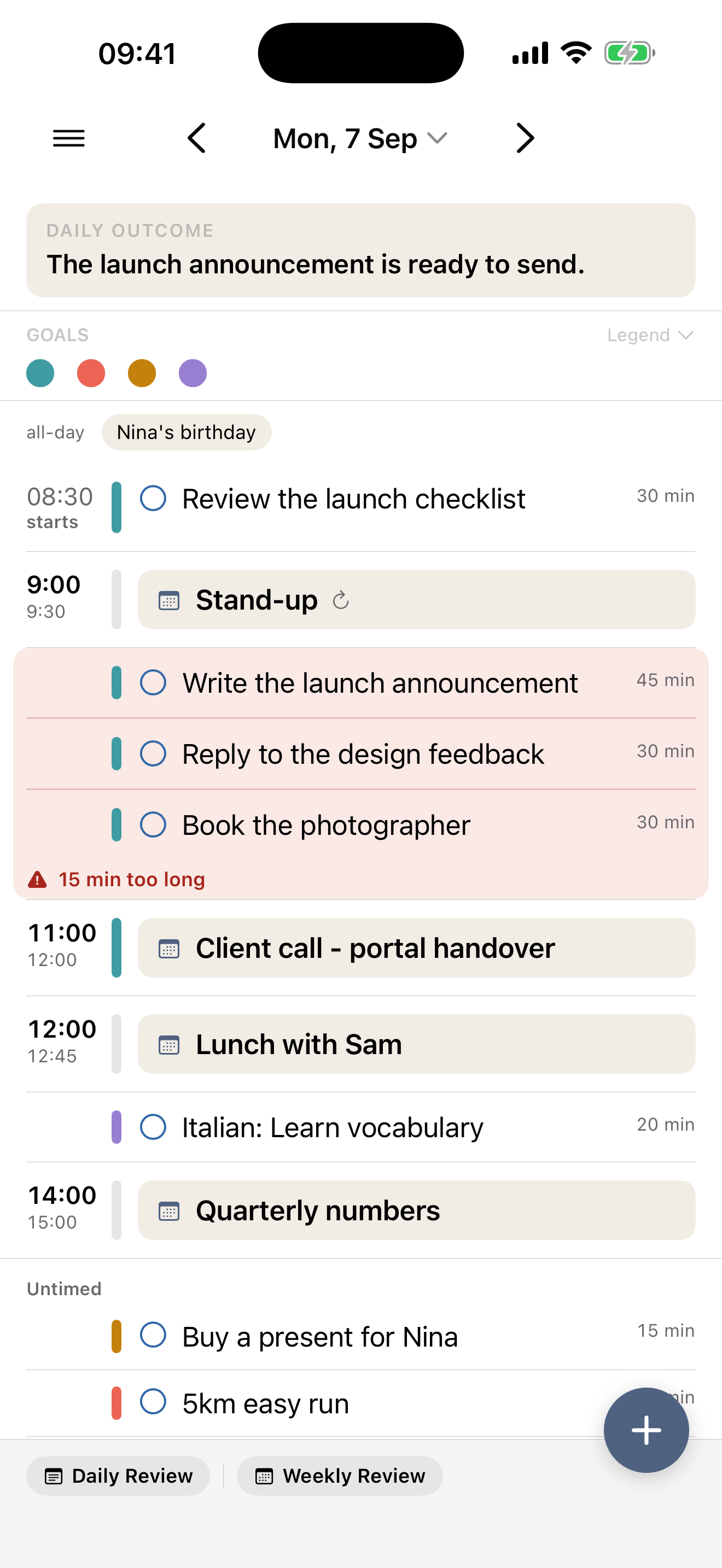
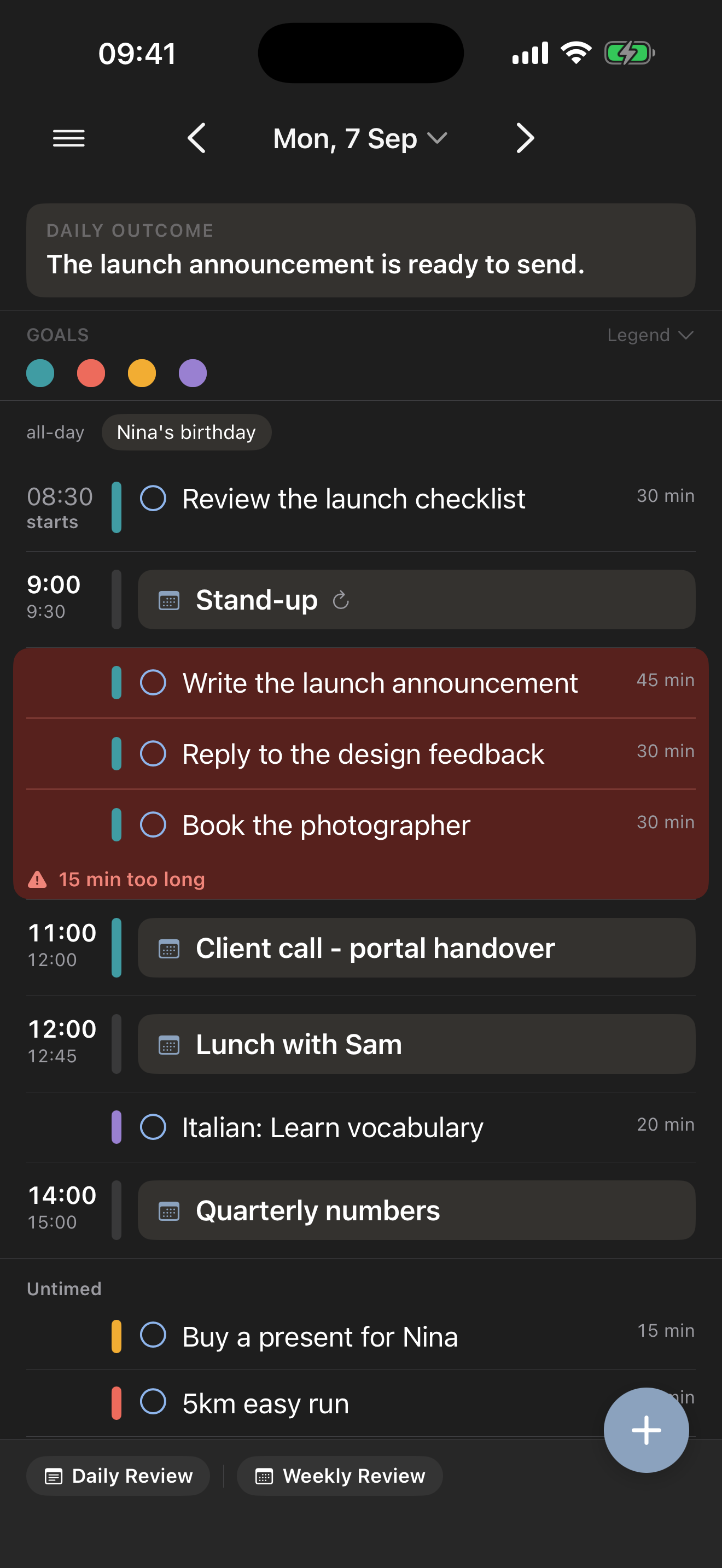
For every stretch between two appointments: add up the tasks you put in it, compare that with the time between the end of one appointment and the start of the next, and if the tasks need more, mark them with the shortfall.
That is the whole feature. The panel says 15 min too long and nothing else — no plan-versus-available figure, no projected finishing times, no advice.
It marks the tasks, not the meeting
The panel sits around the tasks, and that placement is deliberate. Three tasks needing 75 minutes in a 60-minute gap are a planning decision you made; the appointment that follows them is innocent, and drawing a red line on it would blame the wrong thing.
It also means the fix is where the warning is. Shorten a task, move one out of the stretch, tick one off, or let the meeting shift in your calendar, and the sum runs again on the spot. When it fits, the panel disappears. Nothing is stored, so there is no stale warning to clear.
What counts as time available
- Appointments bound the stretch. A stretch is the run of task rows between two appointment rows — exactly what you see.
- Overlapping and nested appointments are merged first, so a short review inside a longer workshop doesn’t produce a negative gap. Two appointments that touch leave a stretch of exactly zero minutes, and a task dropped there has nowhere to go.
- An all-day event bounds nothing. It sits in the banner above the day, not in the hours.
- A completed appointment still counts. A finished 10:00–10:30 call means the morning was not one continuous stretch, and pretending otherwise would silently merge two of them.
- An appointment your calendar shows as Free does not consume the time. A two-hour window to let an engineer in tells you where you are, not that the two hours are spent — so the working time runs straight through it. Expect the consequence: a task planned in that window sits visibly on top of the event rather than after it. The appointment is the constraint; the task is the effort. Only Free behaves this way. Tentative and Busy both still block, and you can change the setting under Show as in the item’s details, on any calendar able to store it.
What counts as time needed
- A task’s duration, if you gave it one.
- Thirty minutes, if you didn’t. An untimed list gets an honest estimate instead of being treated as free time, and the assumption is never written onto the task — give it a real duration later and nothing has been decided for you.
- Completed tasks are left out. They need no more time.
- A repeating task counts on the days ahead too, where it is drawn as a prediction. It is time that will be spent, and seeing next Tuesday already full is worth knowing today.
There is no setting for that thirty minutes, and no way to mark the assumed ones. Both were considered and cut: an estimate marker on every row is a bigger change to the day than this hint is.
Where the day really starts and ends
Tasks sitting before your first appointment stack backwards from it. Tasks after your last one stack forwards. So the first row of the morning run shows the time you would actually have to start, and the last row of the evening run shows when you would actually be done.
There is no working-hours setting behind this, and deliberately isn’t one. The times come from the appointments you really have, which makes them true for this day rather than for an average one. When the computed start reads 06:15, the day has already told you something.
Three details:
- Those two runs are never marked as too long. There is no closing boundary before the first appointment or after the last, so there is nothing to measure against — the bookends only name the two times.
- A day with no appointments has no edges at all. Nothing to count backwards or forwards from, so it stays completely plain.
- A run that carries past midnight names the weekday, so a bare hour isn’t read as tonight.
What focusing and hiding do to the sums
These two look similar on screen and behave differently on purpose.
Focusing a goal doesn’t change the numbers. Focus is a temporary lens — it filters the day down to the work serving one goal. Measuring only what the lens leaves would report an overfull stretch as fitting, because the rows making it overfull were filtered out of view rather than out of the day.
Hiding an event does change them. Hiding is you saying this shouldn’t shape the day, so its time becomes room for tasks. Bring the hidden rows back — the day offers to Show 2 hidden items when there are any — and they count again.
There are no settings
Not “the defaults are good” — there is no screen. No planning window, no working hours, no default duration, no on/off switch, no summary banner anywhere in the app. A hint that appears only when there is a real problem doesn’t need one, and every one of those was drawn and cut before this shipped.
Worth naming what the cut costs: the app doesn’t answer “how early would I have to get up for all this” or “when would this day actually end”. Those need a boundary the day doesn’t have on its own.
Related: Rescue an overloaded day is the five-minute routine this hint was built for, and Plan tomorrow in five minutes is how you avoid needing it.