Repeating tasks and events
Set a repeat on any task or appointment, skip a single occurrence without breaking the series, and delete just one or all the rest — with Reminders and Calendar showing exactly the same thing.
Weekly one-to-ones, the monthly invoice, watering the plants on Wednesdays. Repeating work is most of what fills a real week, and it is where planners usually get vague — showing a repeat you can see but not change, or quietly making a mess of the series when you skip one week.
Make My Day edits repeats properly, on both tasks and appointments, and never shows you an occurrence your other apps don’t.
Setting a repeat
Open a task or an appointment and use the row marked Add repeat, or the existing repeat if it already has one. The same editor appears everywhere: in the details of an existing item, and in the sheet where you create a new one, on Mac, iPhone and iPad alike.
It starts simple. Choose Daily, Weekly, Monthly or Yearly, set how often — Every 2 weeks — and say when it should stop under Ends: Never, On date, or After a number of occurrences.
From there it opens up as far as you need:
- Weekly — pick the weekdays it lands on.
- Monthly — pick days of the month, including a Last box for month-end, or say “the second Tuesday” instead.
- Yearly — pick months, and optionally a day or a weekday within them.
- Advanced — a disclosure holding the rarely-wanted parts: weeks of the year, days of the year, and picking the nth match out of a set, so “the last weekday of the month” is expressible rather than approximated.
The editor only offers what the chosen frequency can actually use, so it cannot build a rule that fails when you save it.
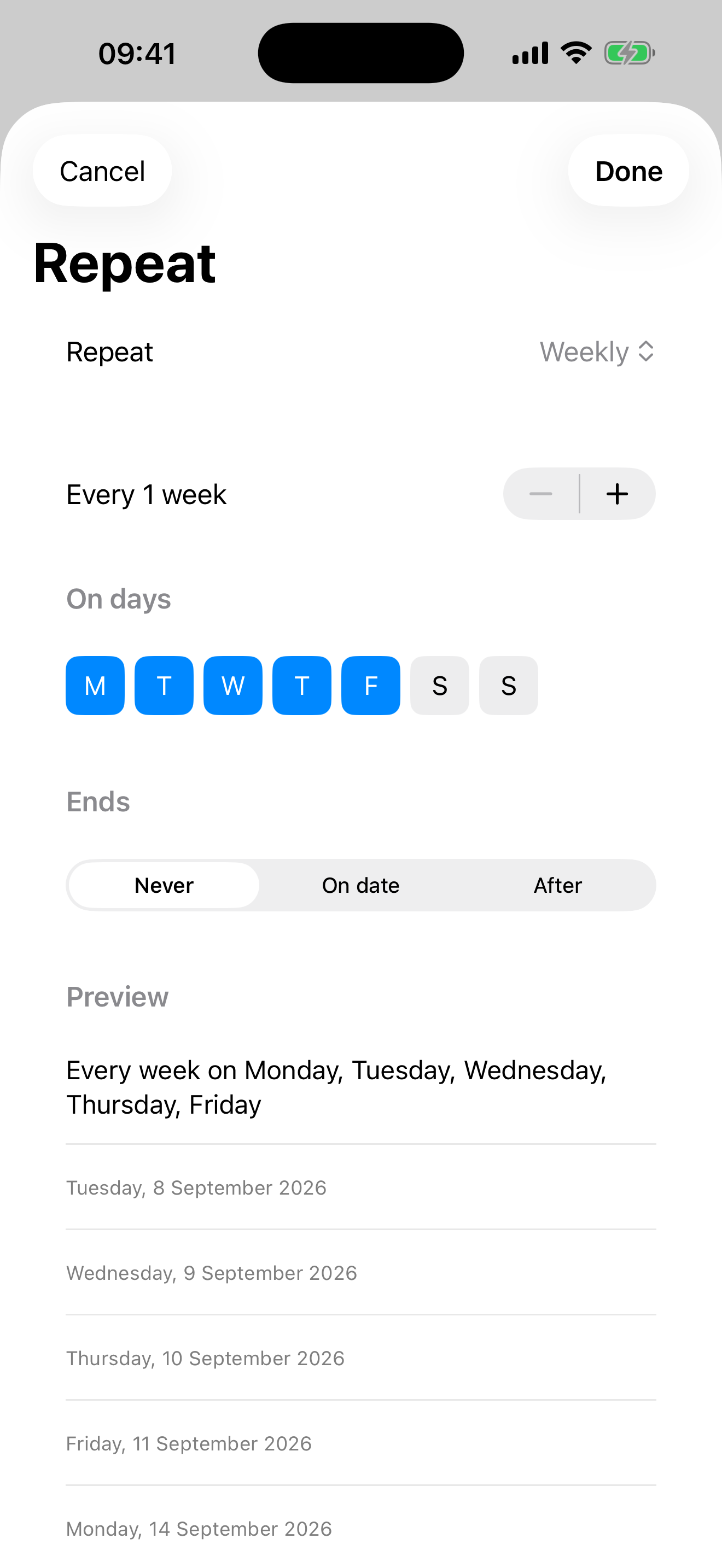
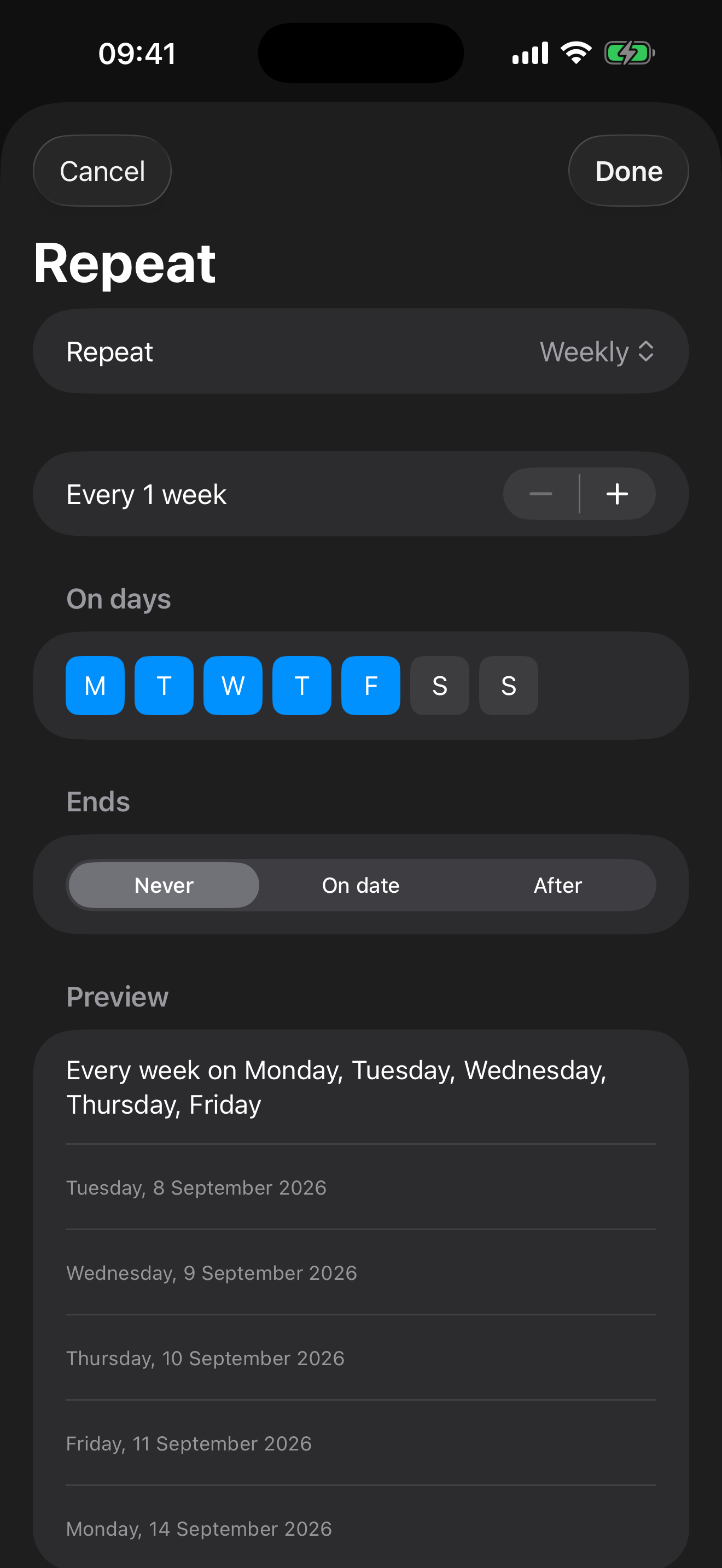
The preview is the point
Underneath the controls sits a Preview: the rule written out in words, and the next few dates it actually produces. Complicated repeats are hard to hold in your head and easy to get subtly wrong — “every second Thursday” and “the second Thursday of the month” drift apart within weeks. Reading the real dates back before you save is faster than discovering it next month.
Skipping one occurrence
Some weeks you simply don’t water the plants. Deleting a repeating task offers Skip This Occurrence alongside Delete All Future, and tells you where the next one lands: the next appears Tue, 23 Jun.
Skipping moves the task on to its next date and does nothing else. It is not marked complete, so it never turns up in your done list as work you didn’t do, and the task keeps its identity — its goal links, its duration and its place in your list order all survive.
If you’re on the final occurrence of a series that ends, the app says so before you commit: this is the last occurrence — skipping or deleting will remove the task. Nothing disappears without warning.
Changing or deleting one, or all the rest
When you edit a repeating item, Make My Day asks how far the change should reach — this one, or this and every future one — and asks once per editing session, only when there is genuinely a choice to make. Deleting works the same way: remove the single occurrence in front of you, or the whole run from here on.
Two things worth knowing:
- Earlier occurrences are never touched. “This and all future” means future. Last month’s stays as it was.
- An appointment with other participants is read-only here. Invitations and replies belong to your calendar app, so Make My Day won’t edit or delete one — including its repeat. Change it there and it updates here.
When you end a repeating task from a chosen day, the later days let go of it too — including any day you had dragged that task onto by hand. The run stops where you said it stops, and the days beyond it are as empty as they were before you set the repeat.
One thing does stay, and it should. If the last occurrence before the end was never ticked off, it is still a real piece of unfinished work, so Make My Day keeps showing it: one overdue task, on one day, ready to be finished or deleted like any other. Apple Reminders and your calendar app show you that task too.
What you see is what Reminders and Calendar see
This is the rule the feature is built around: whatever occurrences Make My Day shows you, Apple Reminders, Apple Calendar and any other app reading the same account show the same ones. A repeat you set here is a real repeat on the real item, not a display trick layered on top.
The practical upshot is that repeating work is visible when you plan ahead. Step forward to next month and the occurrences due then are already on those days — every frequency, not just daily ones — so a Tuesday three weeks out shows what it will actually contain.
The days ahead show predictions
Step three weeks forward and the repeating work due then is already on that Tuesday — but what you’re looking at is not yet something you can finish. The only occurrence there is anything to complete is the current one: the next one due, or an overdue one still waiting on today. Everything beyond that is a forecast of where the work will land.
Make My Day says so on the row. Where the tick-box would be, a later occurrence carries the repeat symbol instead, and nothing there responds to a tap. The title is not faded and the row is not greyed out — the symbol is the whole signal, and the work stands at full strength in the day you’re building, because that is what you’re planning around.
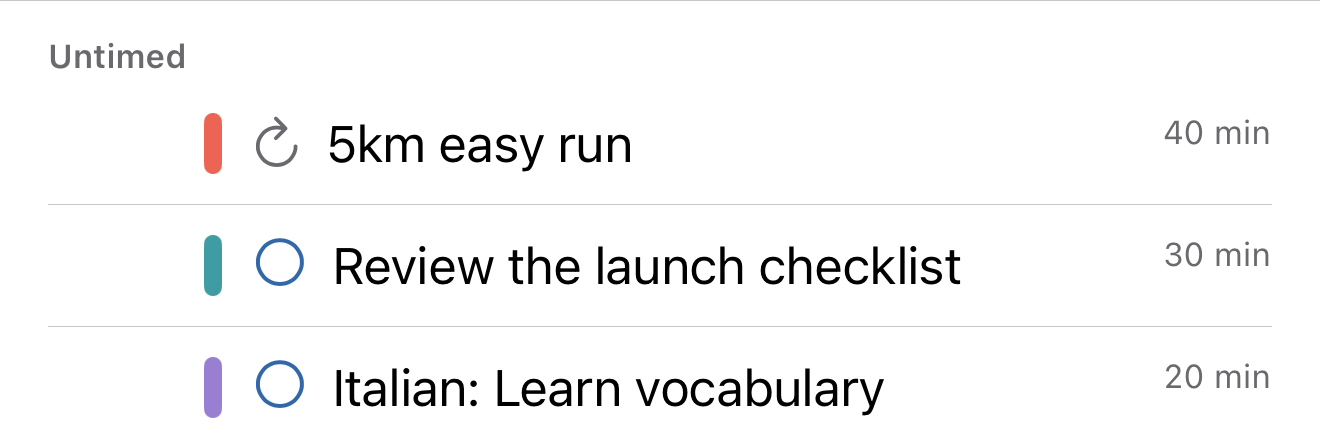
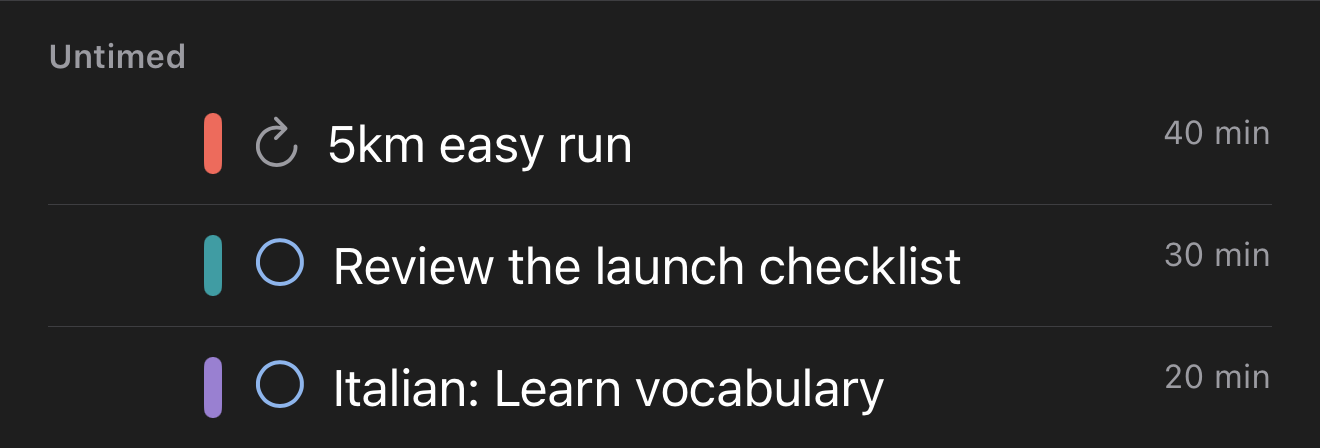
Open one and it still answers what the day needs to know — which list the task is in, when it is due, how it repeats, which goals it serves, and any notes — all as plain text. Above them sits a line saying what you are looking at, and a Jump to current task link that takes you to the day the task can actually be worked on: the day it is due, or today if it is already overdue. It picks the task out for you when you land. Nothing is offered and then refused — the values are simply text, because the task an edit would reach is on that other day.
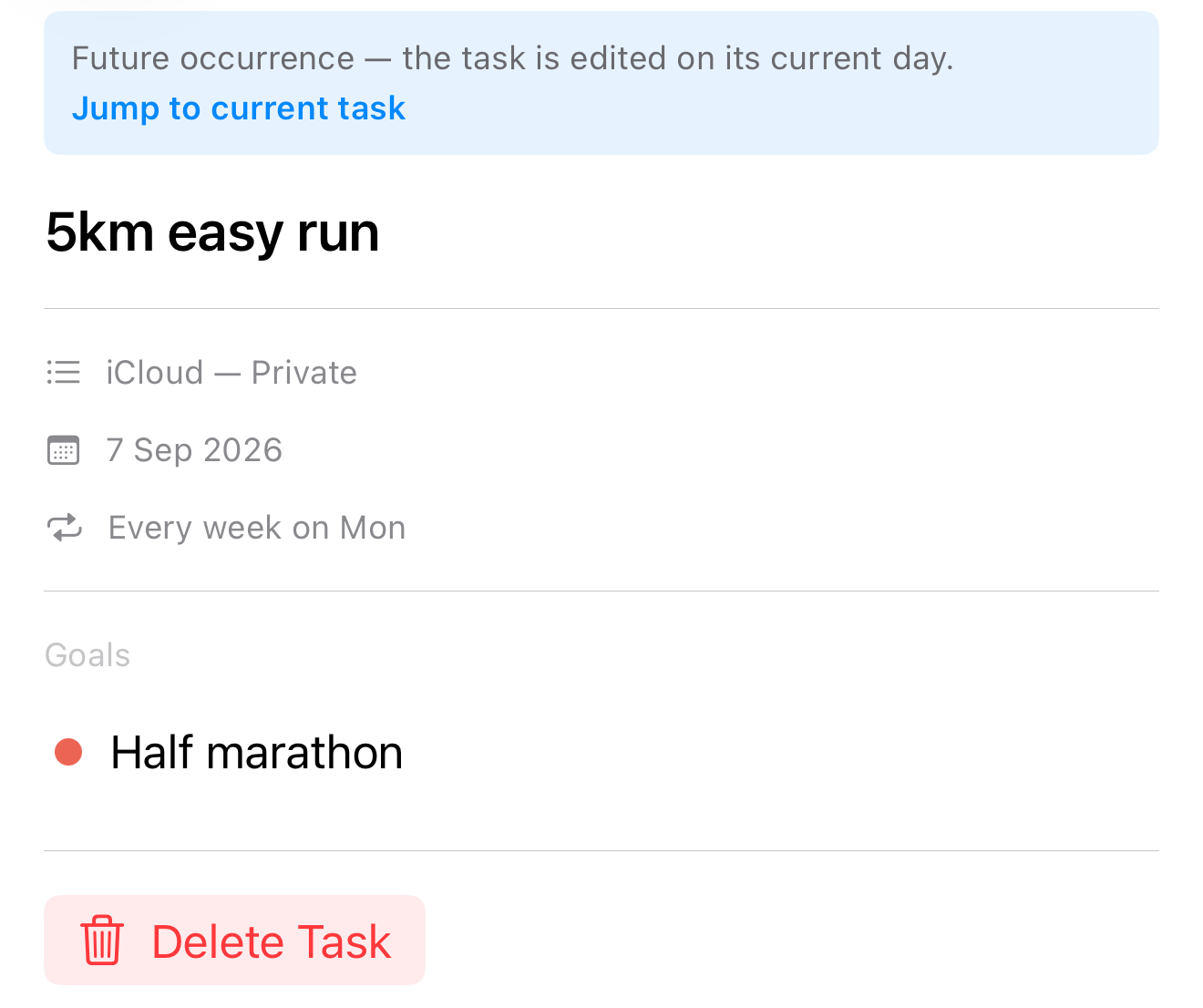
Three things still work from the day ahead, and they are the three worth having there:
- Put it where it belongs. Drag it into the day like any other row, and the position holds.
- Drop that one occurrence. “I’m away next Thursday” is a statement about next Thursday, and it can be made from next Thursday.
- End the run there. As described above, from whichever day you’re on.
Future occurrences also count towards the day’s capacity warning — watching a day fill up before you reach it is the reason to draw them at all.
None of this applies to appointments. Your calendar expands a repeating event itself, so a future occurrence of an appointment is a real event and behaves like one.
Related: Make My Day and your other apps covers the division of labour with Calendar and Reminders, and the capacity warning explains how a day’s tasks are measured against its appointments.