Shaping the day
Drag a task onto the timeline and it lands where you dropped it. Nothing is scheduled for you — the arranging is the planning, and this is how it works on Mac, iPhone and iPad.
Make My Day never places anything on your timeline for you. There is no auto-scheduler, no “optimise my day”, no algorithm deciding that the report belongs at 14:00. The arranging is the planning — the two minutes you spend moving things around are the two minutes in which you decide what the day is.
So the day is something you handle directly. Here is what that means in practice.
Moving a task onto the day
Drag a task from your backlog onto the timeline and it lands where you dropped it. Not at the next free slot, not where the app would have put it — where you let go.
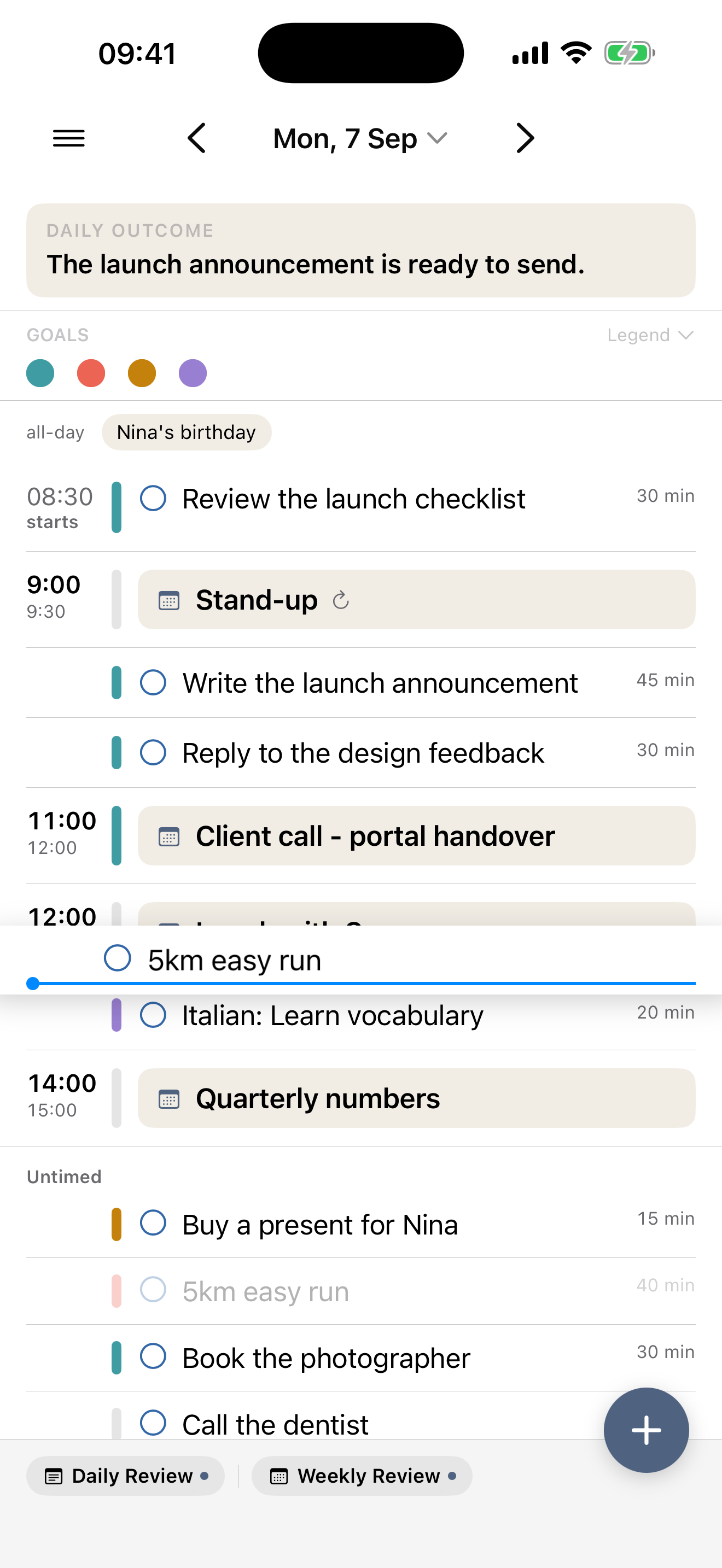
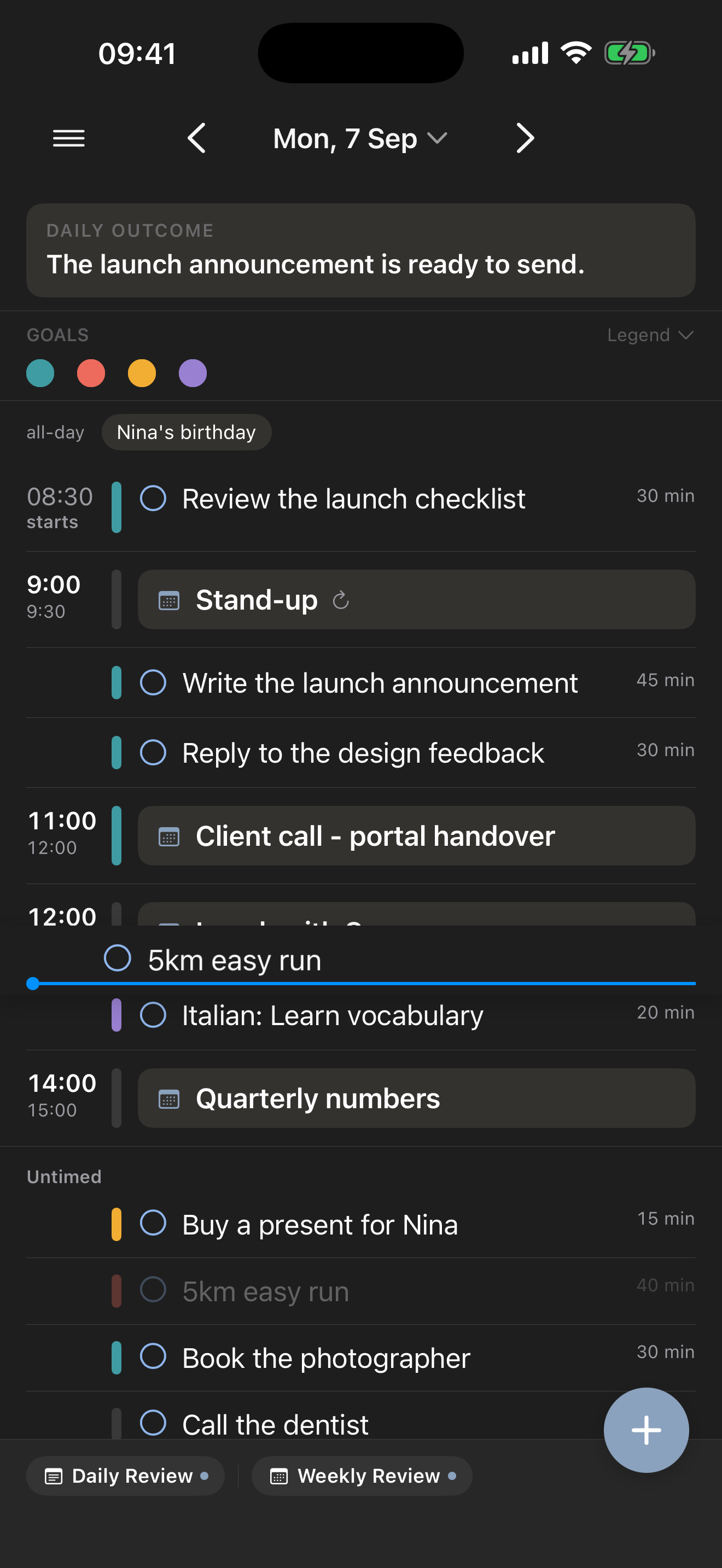
Dragging the other way, from the timeline down among the untimed tasks, takes its time off. Because that is a real change to a real reminder, the app says so first:
This task is set for 14:00. Placing it here removes its time so you can position it freely. To keep the time, edit it in the task’s details.
Tasks that don’t need a time
Most things you plan don’t deserve a clock time. They just need an order — this one before that one, both after the meeting.
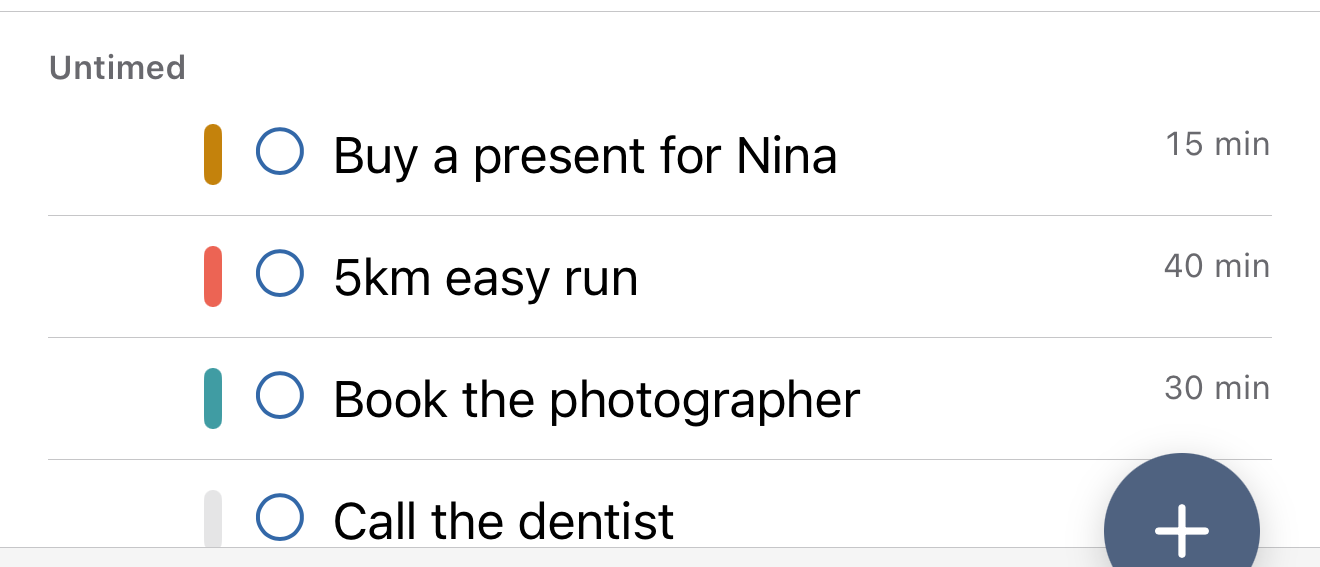
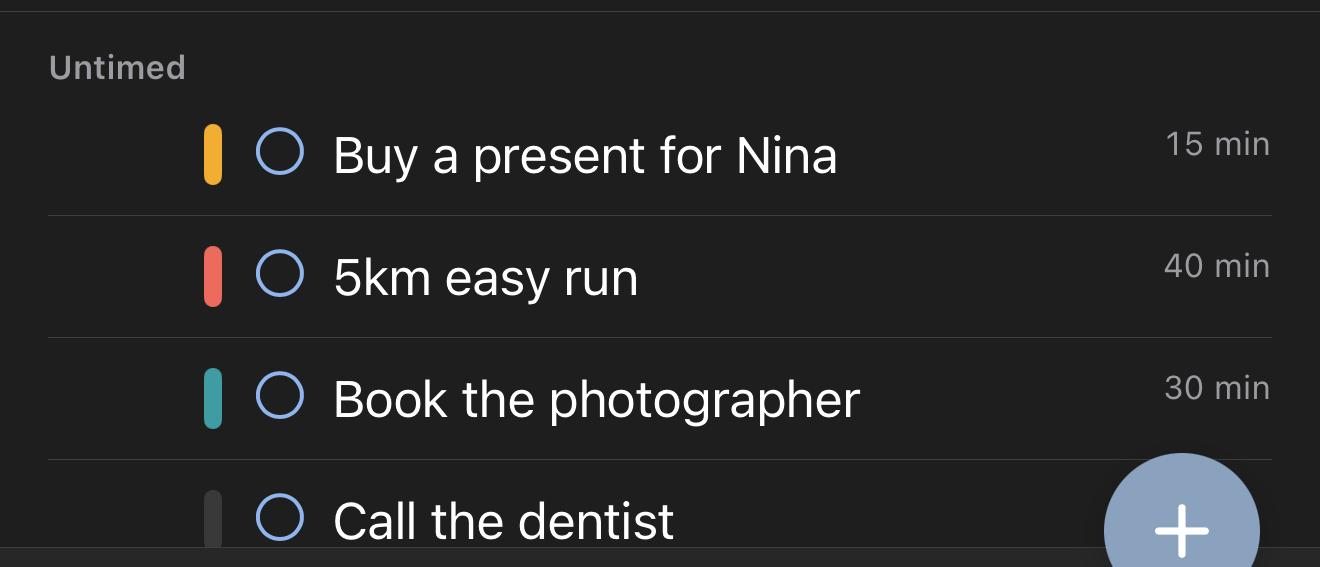
Untimed tasks sit in their own section below the day, and you drag them into the order you want, with an indicator showing where a task will land. That order is yours: it persists, and it syncs across your devices, so the sequence you decided on your Mac in the morning is the sequence on your phone at lunch.
Creating something where it belongs
Rather than creating a task and then moving it, you can create it in position: on a Mac, a + appears between two rows as you move the pointer down the day; on iPhone and iPad, press and hold at the point you mean. Either way, the new task arrives where you asked for it.
The same + creates either kind of thing — one sheet with a Task or Event toggle — and a new task is due on the day you are looking at, which is not necessarily today.
Moving several things at once
On a Mac, shift-click a run of tasks or command-click a scattered few, and drag them as one block. They keep their order relative to each other, and they can move into the timed part of the day, around within it, or back out to the untimed section.
This is what makes the end of a bad day quick: select the four things that clearly aren’t happening, and move them all at once.
Duration is not the same as a time
You can give a task a duration — 45 min, 1 h 30 min — and it is worth understanding what that does and doesn’t do.
Giving a task a duration never schedules it. It doesn’t place the task, doesn’t reserve a slot, and doesn’t move anything: it only records how long you think the thing will take. An untimed task can have a duration and stay untimed.
What it changes is how honestly the day adds up. Durations are what the capacity warning counts when it works out whether the tasks between two meetings actually fit — and a task with no duration is counted as thirty minutes, so a list with no estimates on it still gets a truthful answer rather than a flattering one.
The duration is stored by Make My Day itself, not written into the reminder’s notes. Your Reminders stay clean, and nothing appears in other apps that you didn’t put there.
Reading the day at the right size
The timeline zooms. Zoom in to show fewer hours when an afternoon is dense and you need to see the gaps between things; zoom out to show more when you want the shape of the whole day. There is a Reset zoom for getting back, and the setting is remembered, so the app opens at the density you like.
On iPhone and iPad the day opens scrolled to roughly now, rather than to midnight — and when you drag a task towards the top or bottom edge of the screen, the day scrolls along with it, so moving something from the morning to the evening is one gesture rather than a fight.
Related: Getting started covers the first few minutes, the capacity warning explains what your durations add up to, and Working a list is the same rows without a day around them.