Shared calendars
Shared and subscribed calendars put things in your day that aren’t yours to do. Choose which ones belong in a plan, and hide the individual entries that don’t.
Most people’s calendars aren’t only their own. A partner’s schedule, a team calendar, the children’s school dates, a subscribed calendar of public holidays or fixtures. All useful to know about. Not all of it is work you’re going to do tomorrow.
The distinction matters, because a day that shows everything you could be aware of stops being a plan and becomes a feed.
Decide which calendars belong in a day
The first pass is the coarse one, and you already made it during setup: choose which calendars and reminder lists appear at all.
A calendar earns its place in a daily plan if its entries change what you do that day. A shared holiday calendar usually doesn’t. A partner’s calendar might — if it tells you who’s collecting the children. You can change the selection whenever the answer changes; nothing is permanent.
Hide a single event from one day
The coarse pass isn’t always enough. A calendar can be worth showing in general and still put the occasional event in your day that has nothing to do with you — a meeting you were invited to for information, an all-day marker, a block from someone else’s schedule.
Open the event and choose Hide from schedule. It leaves that day’s plan, and everything else on that calendar carries on as before. To bring it back, open it again and choose Show in schedule.
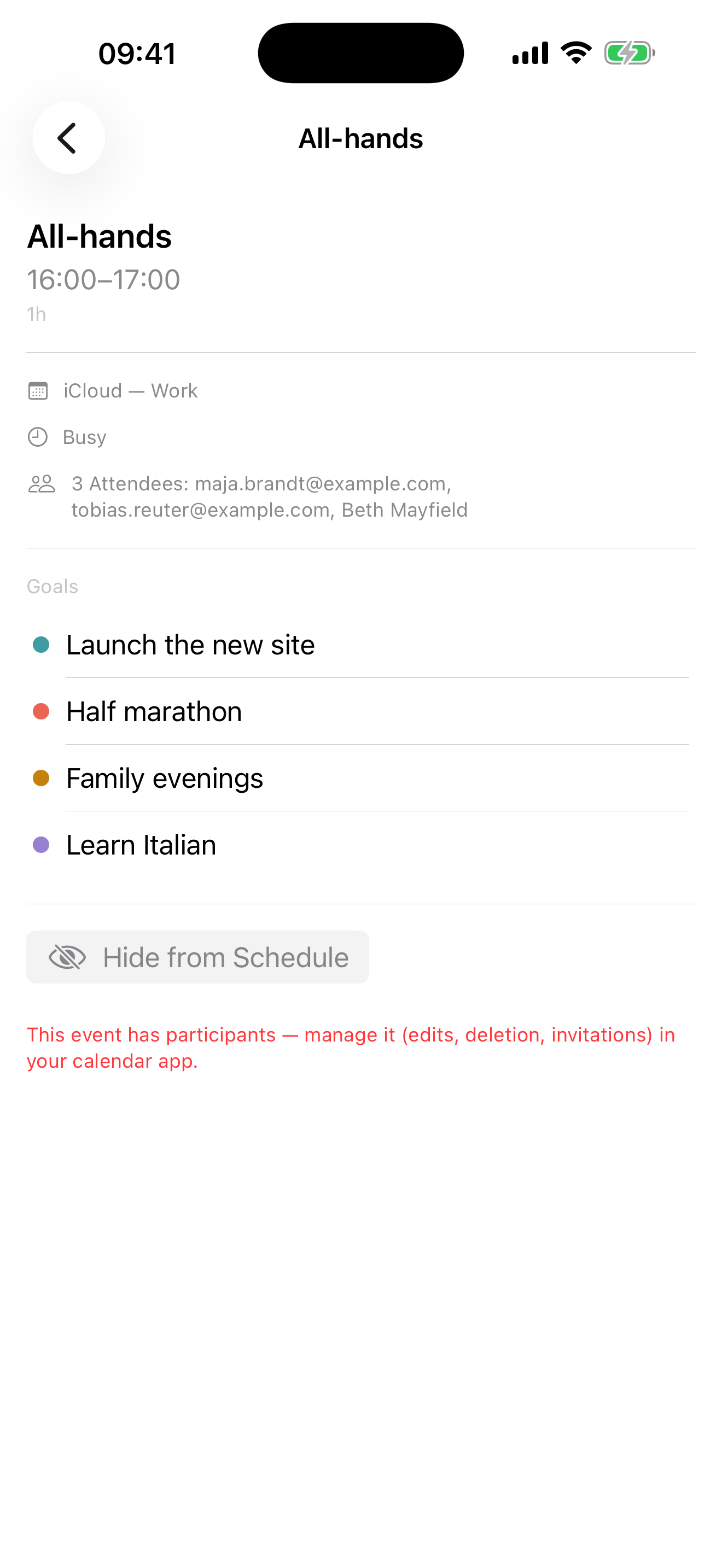
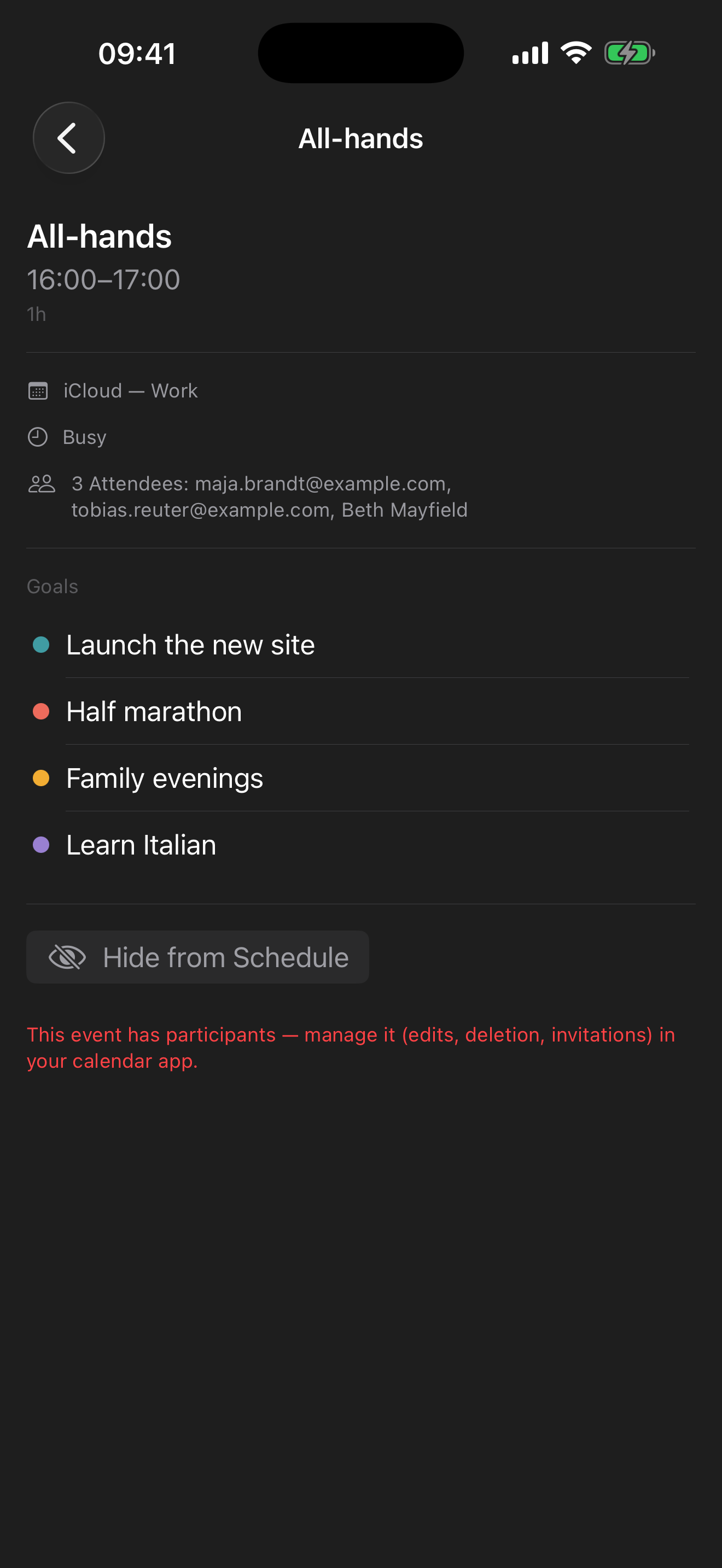
Hiding applies to that day only
This is worth knowing before you rely on it: hiding is remembered per day, not for the event forever. Hiding Monday’s occurrence of a weekly meeting does not hide next Monday’s.
That’s the right behaviour for the one-off case, which is most of them. For something that clutters every week, the durable fix is the coarse one above — move it to a calendar you don’t show in your plan, rather than hiding it again each week.
Note also that this control is for events. Tasks aren’t hidden — they’re moved, either off the timeline to untimed or back to the backlog, which is covered in Rescue an overloaded day.
Hiding is local, and it changes nothing for anyone else
This is the important part, and it’s the same principle as everything else in Make My Day: hiding an event affects your view of your day, and nothing else.
- The event is not deleted — not from your calendar, and certainly not from the shared one.
- Nobody is notified. The organiser doesn’t learn that you hid it, and no reply is sent on your behalf.
- Other apps are unaffected. Apple Calendar and anything else reading the same account still show the event exactly as before.
- Your decision is reversible at any time, from the same place.
- It’s part of that day’s plan, so it lives in your own private iCloud and follows you to your other devices — never a moosystems server. See Privacy & your data.
If you actually want to decline something, do that in your calendar app — that’s a message to other people, and it isn’t Make My Day’s job.
A note on all-day entries
All-day entries are the most common source of noise on a shared calendar: birthdays, holidays, out-of-office markers, deadlines that aren’t yours. They’re worth knowing and rarely worth planning around.
If they crowd your day, reach for the coarse fix rather than hiding them one by one: move those entries to a calendar you don’t show in the plan. Because hiding is per-day, hiding a recurring all-day marker is a chore you’d repeat every week.
Related: Make My Day and your other apps covers what stays in sync, and Privacy & your data covers what never leaves your device.